
Burning Bridges AI Video Generator
Put your cast in the spotlight. Upload a photo to create your Burning Bridges AI performance, complete with the original scene and sound.
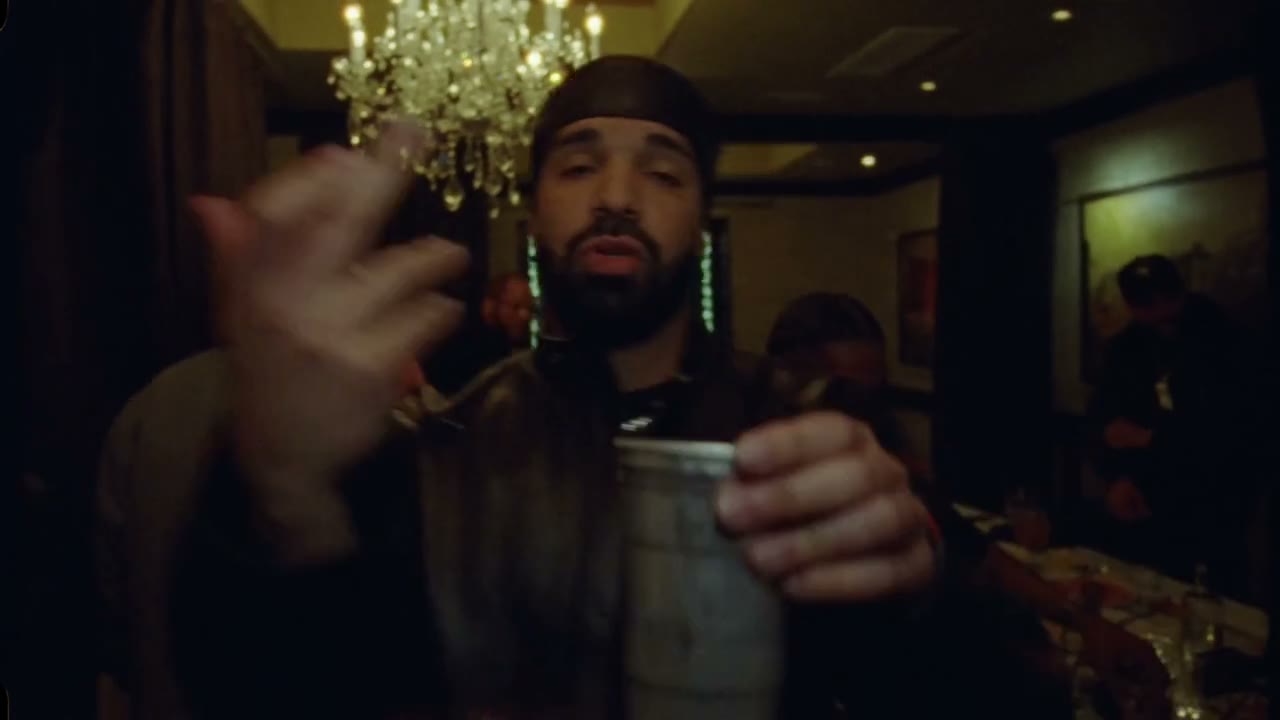
A scene with many faces
Burning Bridges AI community videos
Different characters, one recognizable performance. Explore community-made Burning Bridges AI videos and choose a direction for your own cast.
Your cast. The same performance.
Create a Burning Bridges AI video in three steps
The reference is ready. Choose who appears, check the settings, and make your version.
- 01
Choose the person in front
Start your Burning Bridges AI cast with a lead photo in the first upload box. Use a clear view of the person and the outfit you want represented. The background upload box is visible from the start and becomes available once a lead has been added.
- 02
Keep the crowd or recast it
For a lead-only Burning Bridges AI edit, leave the second box empty. To change the supporting people, add individual photos in cast order, up to 29. Use Replace when updating a photo so that its role stays in place.
- 03
Check the estimate and create
Select a resolution in Settings and review the credits shown in the Generate button. Submit when your photos are ready. Your completed Burning Bridges AI video appears in My creations, where you can preview it and download it.
How Burning Bridges AI recasts the performance
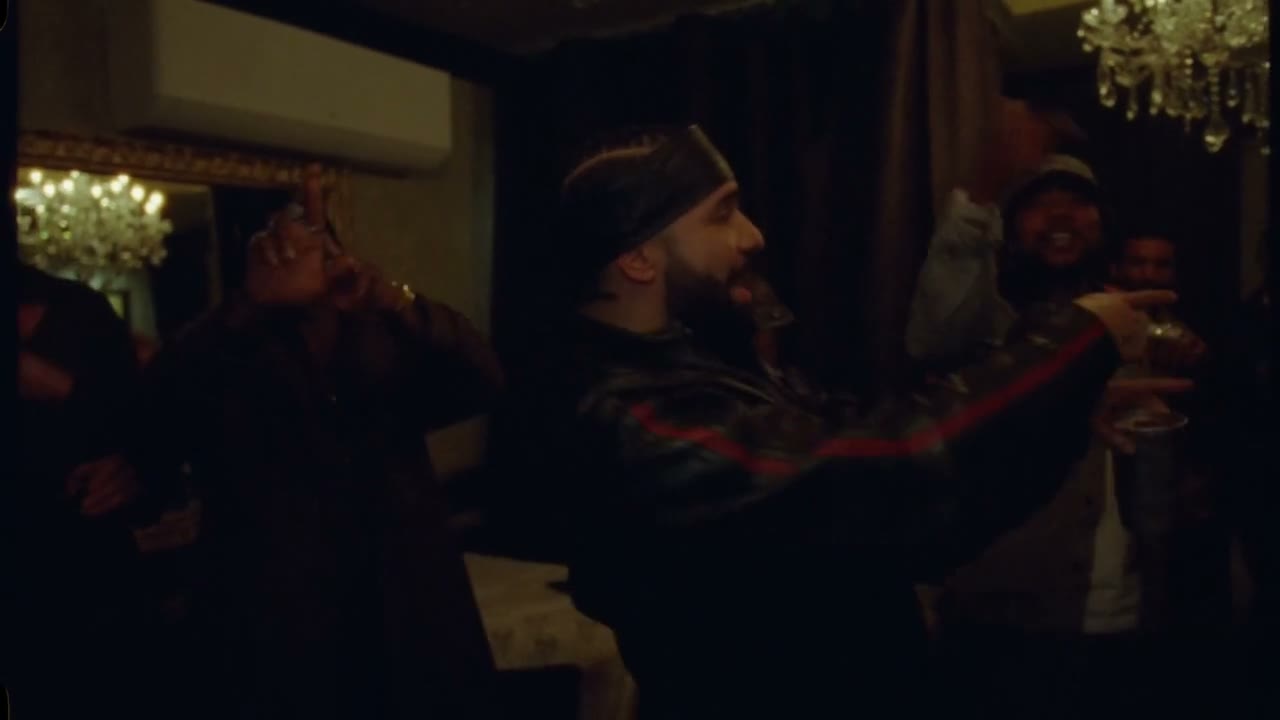
The cup, the crowd, the close-up: this is the performance your photos step into. Burning Bridges AI uses a ready-loaded video as the basis for a character edit, so you can concentrate on casting. Give the lead a new appearance, then decide whether to bring other people into the room. Browse the community videos for a sense of how different characters change the scene.
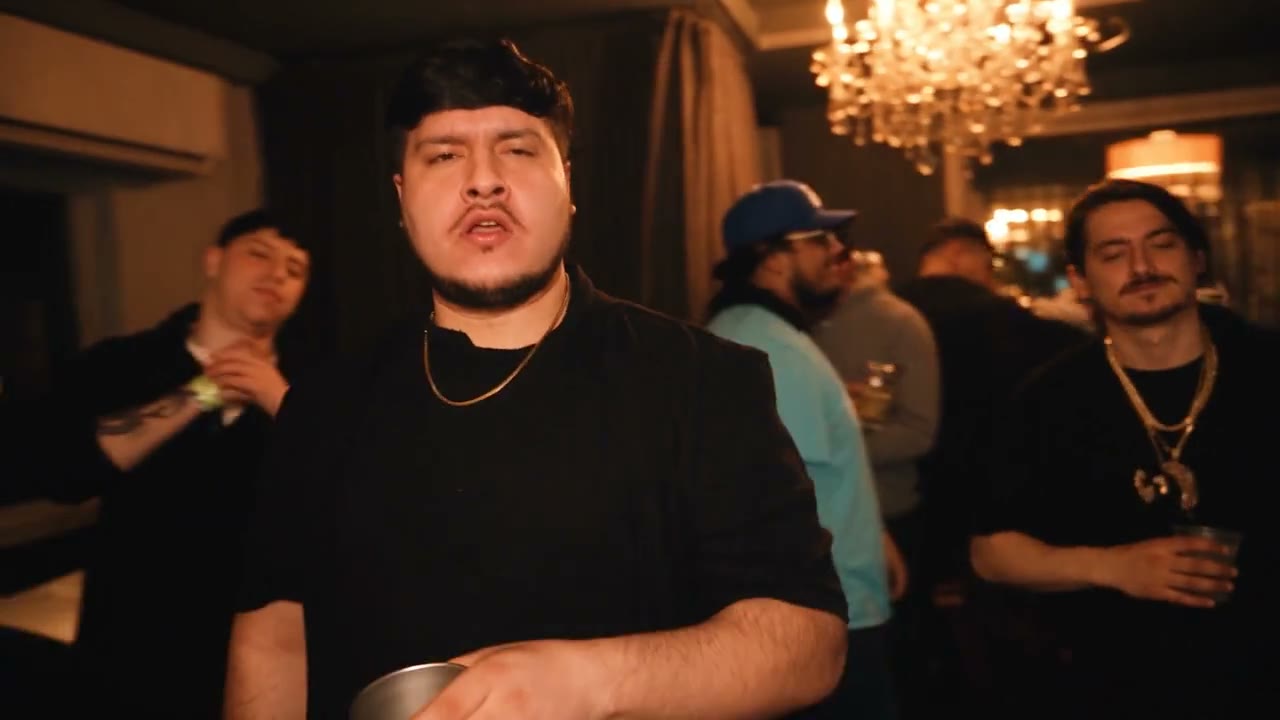
Give your Burning Bridges AI lead a complete look
A portrait can contribute more than a face. Visible hair, clothing, build, and accessories all help describe the person you want in front of the camera. Pick a photo with enough of the upper body to communicate that look. A jacket, a jersey, or a simple black shirt gives the edit different visual material to work with. You supply that appearance; the reference supplies the action. Burning Bridges AI still has to interpret parts hidden in the photo, so small accessories and lettering may differ in the result.
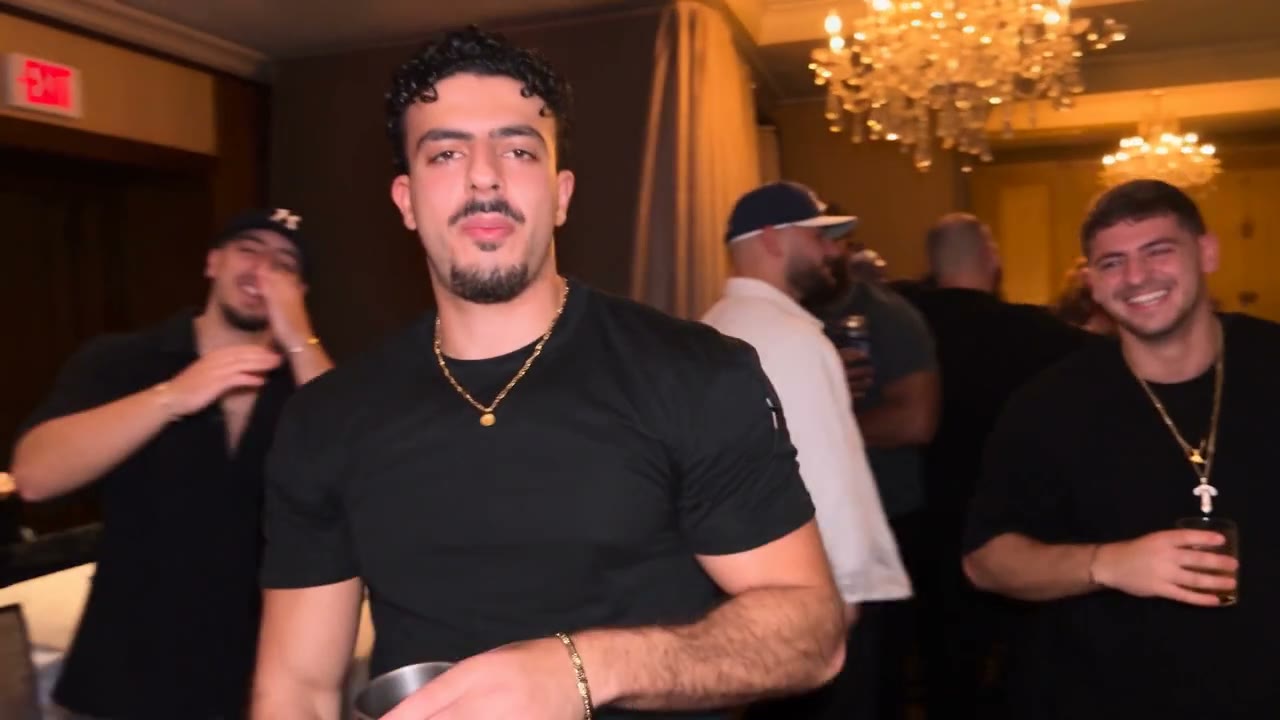
Invite your people into the background
Build a Burning Bridges AI cast around your lead by adding separate photos for the people behind them. You can use up to 29 background references, with one person in each photo. Their order matters: the edit assigns them by first appearance, using left-to-right order when people appear together. Leave this group empty to keep the source crowd. The available slots give you room to describe an existing cast; filling them does not create extra guests. Distinct, clearly visible people are easier to tell apart than a set of nearly identical portraits.
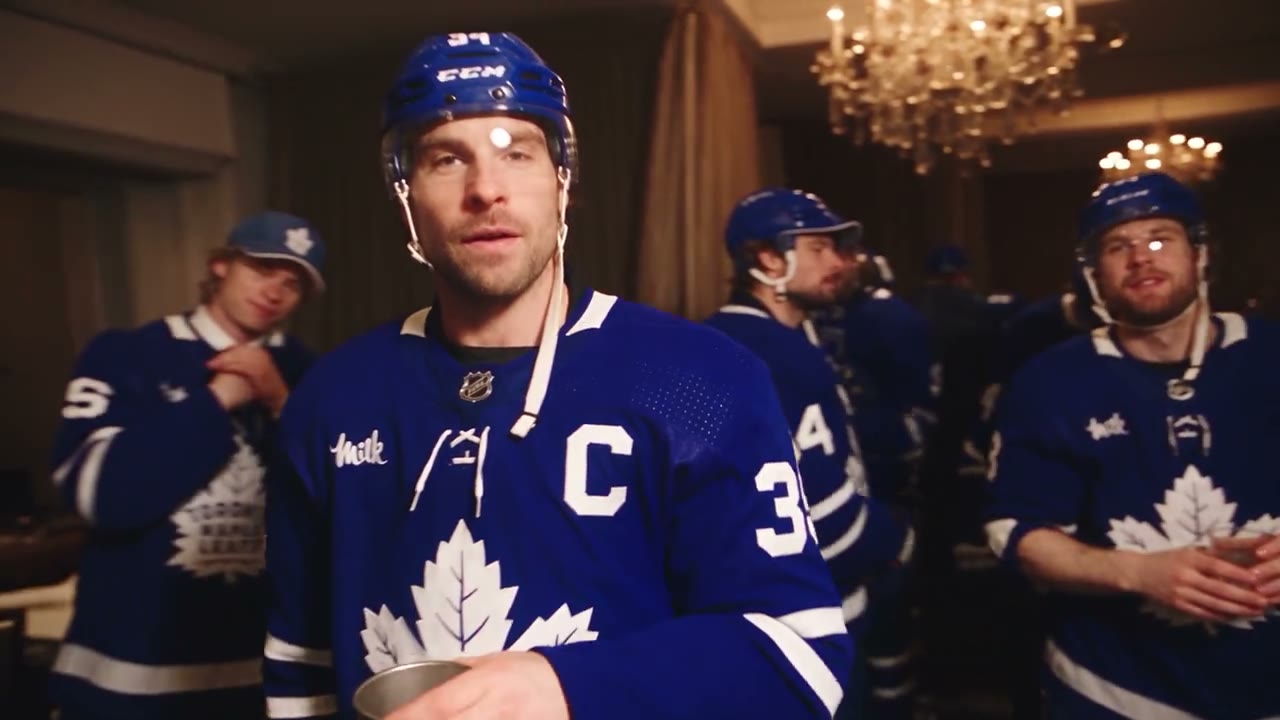
A ready-made performance for your cast
You do not need to choreograph gestures or write a shot list for this template. The loaded reference provides the movement through the room, the interaction with the metal cup, and the changing distance to the camera. Burning Bridges AI asks the edit to carry those actions into your recast scene. The landscape source runs for about 29 seconds. Its timing and framing guide the result; this page has no duration selector. Look closely at the moment a hand or the cup passes across a face, where the edit has less visual information to work with.
Keep the scene and its soundtrack together
The sound belongs to the performance as much as the camera movement does. Burning Bridges AI uses the reference soundtrack for the completed video, while the browsing previews start muted. Open the reference player to hear the clip before generating, and listen to your completed result before downloading. If sound is missing from a finished result, its audio retry can restore the track without requesting another visual generation. The presence of a soundtrack in a template does not establish permission to publish it; choose a use that matches the rights you hold.
Find your Burning Bridges AI cast idea
A single familiar scene leaves plenty of room for character choices. Decide what you want viewers to notice first, then use only the references that serve that idea.
Your own moment in the spotlight
Put yourself at the center of a Burning Bridges AI video with one personal photo. This keeps preparation short and leaves the background as a familiar setting. Compare the source preview with your result to see how your appearance reads under the warm lighting and through the moving close-ups. One photo is enough to start.
A coordinated group appearance
Give your Burning Bridges AI group a shared visual theme with complementary outfits. The existing blue-jersey example shows the effect of repeated colors across the room. Supply each person separately to communicate distinct identities. The scene retains its existing people and movement, so choose references for those roles instead of planning a different group arrangement.
A character portrait brought to life
Already have a character image you are allowed to use? Use it as your Burning Bridges AI lead, or develop a portrait with the AI Image tool first. A recognizable silhouette and visible clothing provide useful visual cues. Treat unusual proportions and intricate costume details as experiments: the performance contains overlaps and movement that can change how those details appear.
What you can control in Burning Bridges AI
Photos shape the cast. Resolution shapes the output setting. The loaded reference supplies the performance.
A stable place for every photo
Burning Bridges AI reserves the first upload for the lead; the remaining images describe supporting people. Replace updates an image in its current slot. To delete a lead with a supporting cast attached, remove the background photos first; this prevents the next person from taking the lead position unintentionally.
A landscape performance to share
Burning Bridges AI follows a 16:9 source of roughly 29 seconds. There is no custom length or vertical framing control in this flow. After downloading, you can make a shorter excerpt in your editor. Check the composition before cropping, because a narrow crop can leave supporting people outside the frame.
Three resolution choices
Burning Bridges AI starts at 480p, with 720p and 1080p available in Settings. Review the updated estimate when you change resolution. Higher resolution can provide more image detail, but it does not guarantee a closer likeness or correct a difficult hand movement. Choose the setting that suits where you intend to view the finished clip.
Sound you can check on the result
Page previews are quiet by default so several examples can be browsed comfortably. Your finished Burning Bridges AI video uses the reference audio workflow. Play it with sound in My creations to check the track as well as the picture. A separate audio retry is available when that track needs restoring.
A price for the settings you chose
Loading a photo and browsing examples do not start a paid generation. The Generate button quotes your Burning Bridges AI settings before you submit. An account with enough credits is required. General plan examples may use different models or shorter clips, so use this job estimate when deciding what to spend.
Plan your Burning Bridges AI credits
Compare the available plans, then check the estimate in the generator for this performance. Resolution and model settings affect credit use; a general video count is not a quote for a Burning Bridges AI job.
Starter
What you get
- 2,400 credits upfront (valid 1 year)
- Up to 4K images and HD videos, depending on the model
- Image editing, video creation & motion transfer
- Watermark-free image & video downloads
- Generation history in your account
Business
What you get
- 48,000 credits upfront (valid 1 year)
- Up to 4K images and HD videos, depending on the model
- Image editing, video creation & motion transfer
- Watermark-free image & video downloads
- Generation history in your account
- Use credits across image and video models
Pro
What you get
- 21,600 credits upfront (valid 1 year)
- Up to 4K images and HD videos, depending on the model
- Image editing, video creation & motion transfer
- Watermark-free image & video downloads
- Generation history in your account
- Use credits across image and video models
Basic
What you get
- 18 one-time signup credits
- Generation history included
- Watermarked previews & downloads
Prices in USD; taxes and total shown at checkout. Subscriptions renew automatically; cancel in Billing settings. Subscription credits expire each period; one-time credits never expire. Refund requests: within 72 hours. Eligible refunds deduct used purchased credits and, where permitted, actual non-returned processing fees. Processing fees are capped at 6% of the original purchase amount, excluding separately charged taxes. Terms · Refund Policy.
Before you make your Burning Bridges AI video
Answers about photos, output, credits, and reviewing your finished scene.
What photos do I need for Burning Bridges AI?
Burning Bridges AI needs one lead photo to start. Background references are optional, with room for 29 more images and 30 images overall. Use a separate person in each background photo. You can prepare the cast before submitting; generation starts only after you use Generate with an account and sufficient credits. The source performance is already provided, so you do not need to find or upload a reference video.
Can Burning Bridges AI work with just my photo?
The requested edit changes the lead and preserves the original supporting people when you leave the background group empty. This is the simplest way to use Burning Bridges AI. The tool does not require a full cast, and it does not intentionally repeat your lead photo across the other people in the room.
How do I replace someone in my Burning Bridges AI cast?
In the Burning Bridges AI upload panel, choose Replace on the photo you want to update. That keeps its position in the cast. If you want to delete the lead completely, first remove any background photos. You can remove individual supporting photos without reordering the ones that remain, then review the sequence before submitting.
How does Burning Bridges AI choose clothes and accessories?
Burning Bridges AI uses the clothes and accessories visible in your reference photo. There is no separate wardrobe selector for this performance. Include the clothes you want represented and avoid a crop that only shows the face if the outfit matters. Fine patterns, small logos, and jewelry may be reinterpreted as the person moves.
Can I choose a different length, shape, or soundtrack?
Burning Bridges AI uses the supplied landscape performance, which lasts about 29 seconds. It offers resolution settings rather than a duration, aspect-ratio, or music picker. The original reference audio is attached through the result workflow. For a different scene or a video based on your own prompt, open the AI Video generator.
Does preparing a Burning Bridges AI video cost credits?
Previewing examples and arranging your photos do not consume generation credits. Submitting a Burning Bridges AI generation does. Check the estimate in the button after choosing your settings, and make sure your account has enough credits. Do not assume an introductory balance will cover this performance or that a plan example represents its exact cost.
What should I check in a Burning Bridges AI result?
Watch the whole result, especially moving hands, the cup crossing the body, close-ups, and people overlapping in the background. Check that the lead remains recognizable and that supporting identities stay distinct. AI editing can alter details or blend people during these moments. Burning Bridges AI does not promise an exact likeness, flawless lip movement, or a measured success rate.
Can I share a Burning Bridges AI video of someone else?
For a Burning Bridges AI video featuring another person, use photos you may transform and get appropriate permission from that person. Check your rights to the reference footage and soundtrack before publishing. Community examples show possible creative directions; their availability here does not grant rights to their characters, likenesses, or audio. See the Use Policy for the site rules.
How do the image and video tools fit into this workflow?
AI Image can help you create or revise a portrait before you bring it into this cast. AI Video handles a different task: generating a scene from your own idea and supported references. Return to the Burning Bridges AI homepage when you specifically want this loaded performance. The tools use your account and credit balance on this site.
Where can I download my Burning Bridges AI video?
Find your completed Burning Bridges AI video in My creations or video history, then use its download control. Preview both picture and sound first. If the visual result is complete but the soundtrack is absent, try the audio retry on that result. You do not need to request another visual generation just to restore the reference track.
Ready to create your Burning Bridges AI video?
Choose your lead, add anyone else you want represented, and create your Burning Bridges AI version from the loaded reference.
Try Burning Bridges AI